
To import Quizlet flashcards, go to the Quizlet website, click Create, then Flashcard set, then Import, and paste your formatted text before hitting Create. This import feature only works on desktop through a web browser, not the mobile app. Most students paste from Word, Google Docs, or a copied pair of spreadsheet columns, with terms and definitions separated by a comma, tab, or dash.
TL;DR:
- Using the import feature effectively requires pasting well-formatted text with consistent comma, tab, or dash separators, often from spreadsheets, to avoid garbled cards.
- Previewing the imported cards before finalizing helps catch formatting errors caused by stray characters or incorrect separators, saving time and fixing issues early.
- Smart Assist allows transforming lengthy notes or PDFs into draft flashcards automatically, but it may paraphrase content, so reviewing AI-generated cards is essential for accuracy.
- Importing is ideal for clean vocabulary lists, but for applied exam questions, adaptive tools like RecallOS offer exam-style practice that reflects real test scenarios better.
- Most import issues stem from using the mobile app, poor formatting, or restricted access rights; importing on desktop with proper formatting streamlines the process.
Table of Contents
- Step-by-Step: Importing Flashcards on the Quizlet Website
- How Do You Format Text So Quizlet Reads It Correctly?
- Should You Use Smart Assist Instead of Manual Import?
- Why Won't My Quizlet Import Work?
- How Do You Export and Migrate a Quizlet Set?
- When Does an Adaptive Tool Beat a Flashcard Import?
- Import, Build, or Adapt: Which One Fits Your Study Session?
- A Realistic Take on Flashcard Importing
- Want Exam-Ready Practice Instead of Just Flashcards?
- Where to Verify These Steps Yourself
- Sources
- FAQ
Step-by-Step: Importing Flashcards on the Quizlet Website
Quizlet's import tool is buried a couple of clicks past where most people expect it, which is why so many students give up and retype everything by hand. Here's the actual sequence, confirmed by Quizlet's own Help Center:
- Log in at quizlet.com and click Create, then select Flashcard set.
- Add a title for your set before doing anything else. Quizlet wants this locked in first.
- Click Import, which sits just below the title field and is easy to miss on a first pass.
- Open your source document (Word, Google Docs, or a spreadsheet) and copy the text you've already formatted with consistent separators.
- Paste the text into the import box. Quizlet will show you a live preview of how it plans to split each line into a term and a definition.
- Select your separators. Choose which character splits terms from definitions (comma, tab, or dash) and which character splits one card from the next (usually a new line).
- Check the language setting if you're studying anything outside English. It affects how Quizlet's audio and search features behave later.
- Preview the generated cards. Scroll through the list before committing. This is the step people skip, and it's the one that saves you from a 60 card set full of garbled entries.
- Click Create to publish the set.
Once the set exists, do a quick sanity check: open two or three cards at random and confirm the term lines up with the right definition. If a row got mangled, you'll usually spot it here rather than a week later during a study session. Also glance at the set's privacy setting. Quizlet defaults new sets to a visibility level you may not want if you're sharing the link with a study group or using Quizlet's flashcard sharing features to hand a set off to classmates.
This whole process, from opening the Create menu to hitting Create at the end, takes most people under five minutes once they've done it once. The friction is almost always in formatting the source text beforehand, which is worth getting right before you ever open the import box.
How Do You Format Text So Quizlet Reads It Correctly?
Quizlet's import tool splits your pasted text using two separators: one between the term and definition, and one between each card. Get these wrong and you'll end up with definitions that swallowed the next question, or twenty blank cards in a row.
Three formats work reliably:
- Comma separated:
mitosis,cell division producing two identical daughter cells - Tab separated: paste directly from a two-column spreadsheet, where the tab between columns becomes the separator automatically
- Dash separated:
mitosis - cell division producing two identical daughter cells
Each card needs to sit on its own line, so a newline is your card separator in almost every case. If you're pulling from Excel or Google Sheets, put terms in column A and definitions in column B, select both columns, copy, and paste straight into the import field. The tab characters between columns carry over automatically.
The most common failures come from stray commas inside a definition, numbered lists that leave "1." attached to the front of a term, or bullet characters copied in from a Word document. Strip those before pasting.
Pro Tip: Paste just five cards first and preview the result. If they parse cleanly, go back and paste the rest. If they don't, you've only got five lines to fix instead of debugging a wall of 150.
Should You Use Smart Assist Instead of Manual Import?
Quizlet's AI flashcard generator, called Smart Assist, takes a different approach than the paste-and-import method. Instead of requiring pre-formatted term-definition pairs, it accepts raw notes, PDFs, slide decks, and even photos of handwritten notes, then generates draft flashcards on its own.
The two tools solve different problems:
- Manual import gives you exact control. What you paste is what you get, card for card.
- Smart Assist does the interpretive work for you, turning a page of dense lecture notes into a set of question-and-answer pairs without you writing a single card by hand.
- Use Smart Assist when you have long-form notes, scanned pages, or a slide deck and no time to reformat it into columns.
- Use manual import when you already have a clean list of terms and definitions, since there's nothing for the AI to interpret and manual import will be faster.
One catch worth knowing: Smart Assist can summarize or rephrase your source material rather than quoting it directly. Always read through the draft cards before publishing, since an AI paraphrase of a nursing term or a chemistry definition can occasionally drift from what your instructor actually said.
Why Won't My Quizlet Import Work?
Import problems tend to fall into a short list of repeat offenders. Work through these in order before assuming something's broken:
- You're on the mobile app. Quizlet's import tool is web-only. Build the set on desktop, then switch to the app to study it, since your library syncs automatically.
- Cards look scrambled or merged. Recheck your separator selection against what's actually in your pasted text. A single stray comma inside a definition can throw off every row that follows it.
- The Import or Export button is missing. You likely don't own the set. Copy it to your own account first if Quizlet allows it, then look for the option again.
- Third-party import extensions stopped working. Browser extensions that lean on Quizlet's export feature can break whenever Quizlet updates its interface, so treat them as a convenience, not a dependable workflow.
How Do You Export and Migrate a Quizlet Set?
Getting your cards out of Quizlet uses the same logic as getting them in. Open the set, click the three-dot menu, and select Export. Quizlet will hand you back plain text with a delimiter, usually a tab, separating each term from its definition.
From there, migrating to another app or a spreadsheet follows a short checklist:
- Choose one consistent delimiter across the whole export before doing anything else with it.
- Paste into a spreadsheet first if your target destination (Anki, a CSV import field, another flashcard app) expects a specific file structure.
- Save as CSV once the two columns look clean.
- Test with a small batch of five or ten cards in the destination app before importing the full set.
One caveat: if the set belongs to someone else, the export option may be restricted or missing entirely. Copy the set to your own library first, if Quizlet permits it, before trying to export.
When Does an Adaptive Tool Beat a Flashcard Import?
Quizlet's import feature is genuinely good at what it's built for: turning a clean list of terms into flashcards fast. But rote recall only gets nursing and healthcare students so far when the exam itself is built around applying knowledge to patient scenarios, not matching a word to its definition.
RecallOS approaches the same problem from the other direction. Instead of you formatting text for import, its AI Quiz Generator reads your uploaded notes and generates adaptive, exam-style questions, then tracks which topics you keep missing and resurfaces them for review.
Where the two tools actually complement each other:
- Import quick vocabulary lists into Quizlet when you need fast, low-stakes recall drills.
- Use RecallOS's AI Quiz Generator when you want practice questions that mirror actual exam blueprints rather than flashcard format.
- Combine both: build a Quizlet set for terminology, then let RecallOS handle spaced review of your weak areas leading into the NCLEX or another certification exam.
- Check RecallOS's example workflows to see how uploaded notes turn into adaptive practice sets.
RecallOS was developed specifically for exam blueprints, not general trivia, which matters if your studying needs to map to a real test.
Import, Build, or Adapt: Which One Fits Your Study Session?
Import when you already have a clean term-definition list and just need fast flashcards. Build sets manually when diagrams, multi-step problems, or nuance matter more than a quick match. Reach for an adaptive tool when you're prepping for a certification exam and need targeted review of what you keep getting wrong, not just repetition.

A Realistic Take on Flashcard Importing
Most guides on this topic treat the import feature like it's the whole solution to studying efficiently. It isn't. It's a formatting shortcut, nothing more. The actual value of a flashcard set still depends entirely on whether the cards test the right thing, and pasting a glossary into Quizlet doesn't fix a glossary that was poorly chosen to begin with.

Where I think students get this backwards: they treat importing as the hard part and reviewing as the easy part. It's the opposite. Getting 100 cards into Quizlet in three minutes is trivial once you know the separator syntax. Knowing which 100 terms actually matter for your exam, and which ones you'll forget again in two weeks without a review system behind them, is the real problem. A tab-separated paste job doesn't solve that.
This is also why Smart Assist is a genuine step forward and not just a gimmick. Turning raw lecture notes into draft cards removes the tedious reformatting step that used to keep people from making flashcards at all. But it still leaves the harder question untouched: whether flashcard recall is even the right test format for what you're trying to learn. For vocabulary, yes. For clinical judgment questions on something like the NCLEX, a straight term-and-definition card format tends to fall short of what the exam actually asks you to do, which is why pairing rote tools with adaptive, exam-blueprint-aligned practice tends to produce better results than leaning on either one alone.
— Caleb
Want Exam-Ready Practice Instead of Just Flashcards?
Quizlet import is the fastest way to turn a term list into flashcards. RecallOS takes a different route to the same finish line. Upload your notes, lecture slides, or study guides, and its AI Quiz Generator builds adaptive, exam-style questions instead of a static card deck, then keeps circling back to whatever you're getting wrong. For nursing and healthcare exam prep, targeted weak-spot review tends to matter more than raw repetition.
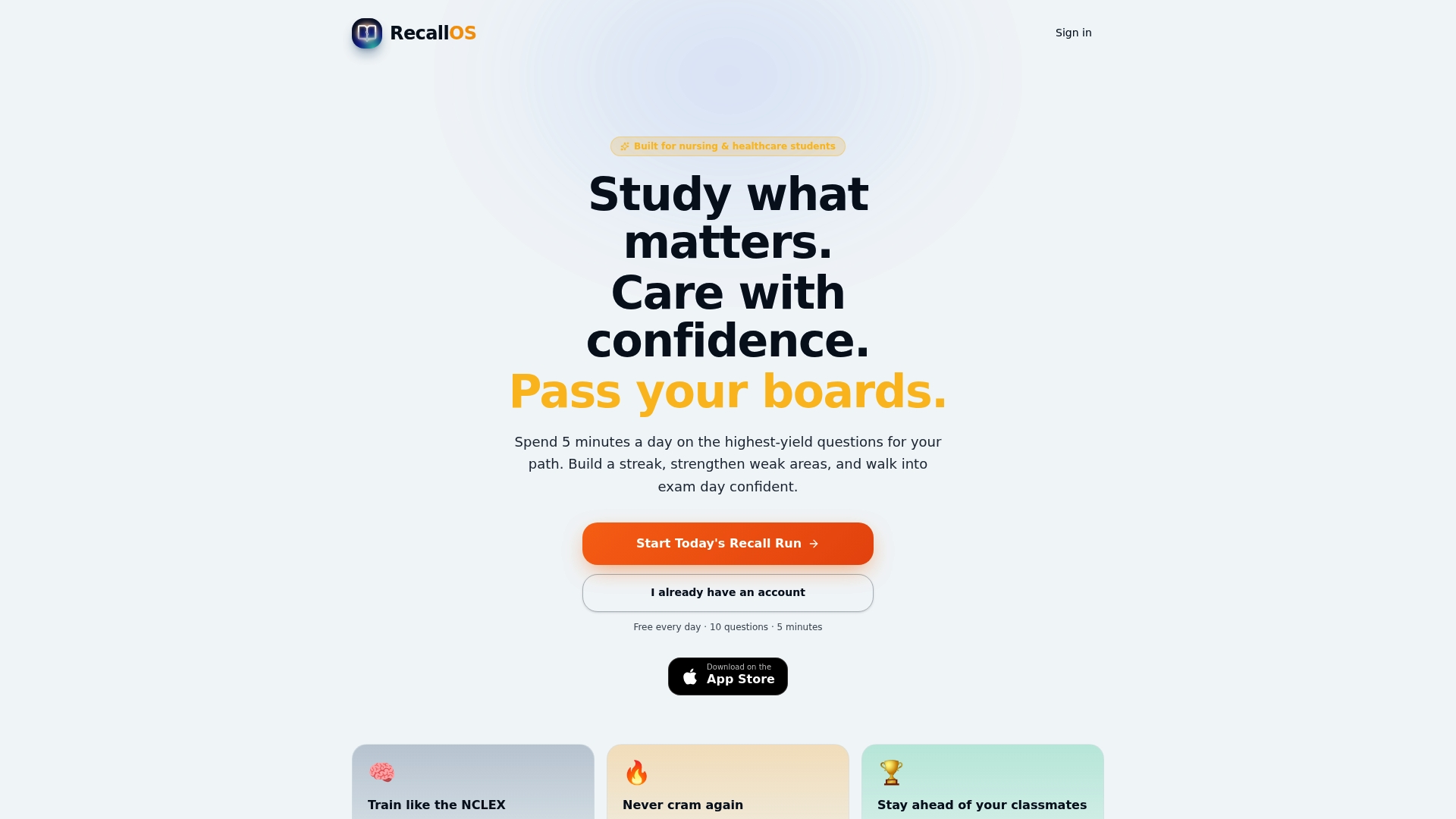
If you're prepping for the NCLEX or another certification exam, check out the nursing student study app to see how daily practice and adaptive review are built around real exam blueprints. Visit RecallOS to try it and see how your own notes turn into a working study plan.
Where to Verify These Steps Yourself
For the exact click-by-click process, Quizlet's own Help Center article on creating sets by importing content covers separators and troubleshooting in more depth than any third-party guide. Their AI Flashcard Generator page explains Smart Assist's upload options directly. If you're building a study schedule around your imported sets, Semester Flow can turn your syllabus into a calendar you can work backward from.
Sources
- Creating sets by importing content
- AI Flashcard Generator | Quizlet
- How to import flashcards from Quizlet to Knowt | Knowt Help Center
FAQ
Can I Import My Flashcards From Quizlet to Anki?
Not directly. You have to export your Quizlet set first using the three-dot menu, then reformat the exported text into a CSV or tab-delimited file that Anki's own import tool accepts.
Can I Export My Flashcards From Quizlet?
Yes. Open the set, click the three-dot menu, select Export, and Quizlet gives you delimited text you can copy into another app or a spreadsheet.
Can I Import a CSV File Directly Into Quizlet?
No. Quizlet's standard import field takes pasted text, not a CSV upload, so you need to open the CSV, copy the two relevant columns, and paste them into the import box instead.
Can You Import Files Into Quizlet?
You can't upload a file through the classic import tool, but Smart Assist accepts PDFs, slide decks, and photos and converts them into draft flashcards automatically.
Why Does My Quizlet Import Only Work on Desktop?
Quizlet's import feature is built into the web version of the site. The mobile app is designed for studying and reviewing sets, not building them from pasted text.